
Jenkins Bitbucket Integration
Triggering a build after a pull request has been merged
Section titled “Triggering a build after a pull request has been merged”A development workflow might consist of feature branches that are only merged via a pull request (PR) from Bitbucket Cloud. After the PR is merged, Jenkins should be notified to trigger a build.
It is possible configure Jenkins and Bitbucket Cloud to accomplish this.
Configuration steps
Section titled “Configuration steps”-
Jenkins: plugin: Generic Webhook Trigger
Navigate to Jenkins → Manage Jenkins →
Manage PluginsInstall the
Generic Webhook Trigger Plugin -
Jenkins: Create an auth token for Bitbucket
Create a new Jenkins user, e.g.
bitbucket. It will be used to trigger the job. Alternatively you can use an existing user.Login with the user → Profile (top right icon) → Configure
Navigate to API Token → Current token(s) → Add new Token
Remember the chosen user and token value.
-
Jenkins: Configure the job’s trigger
Navigate to the job and click on
Configure→Build TriggersCheck
Generic Webhook TriggerAdd parameters that determine whether the job should be triggered.
In this example we need
-
Post content parameters → Add a
Variablewith namebranch, withExpressionequal to$.pullrequest.destination.branch.nameandJSONPathchecked. -
Post content parameters → Add a
Variablewith namerepository_name, withExpressionequal to$.pullrequest.destination.repository.full_nameandJSONPathchecked. -
Header parameters → Add a
Request headerwith valueX-Event-Key, and emptyValue filter.
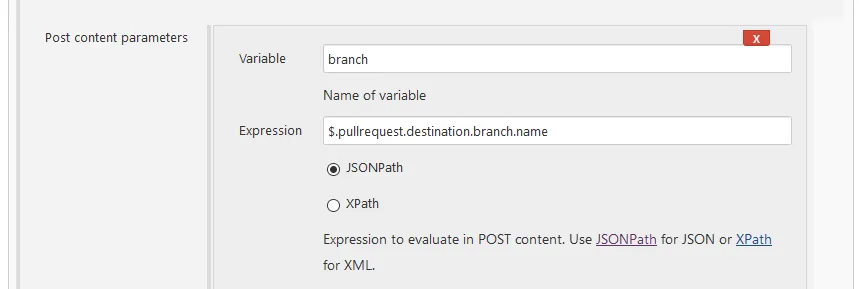 Configure the Generic Webhook Trigger
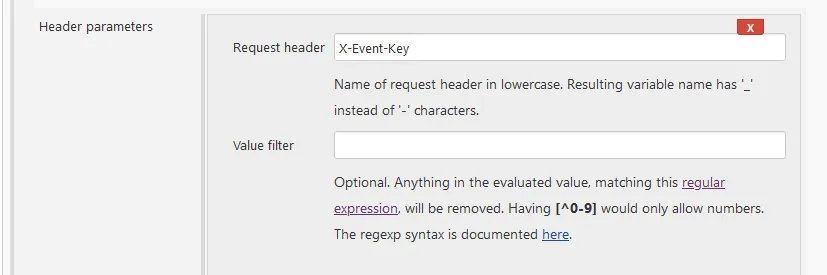 Configure the Generic Webhook Trigger X-Event-Key
Other parameters can be used by using expressions that extract values from the HTTP POST webhook request coming from Bitbucket Cloud.
All jobs work on the same endpoint. To specify whether a job should be triggered based on the webhook request, use the parameters in the Optional filter.
Optional filter → Text
$branch $repository_name $x_event_key.Optional filter → Expression
master magicmonster/example-repo pullrequest:fulfilledThe above Optional filter will perform a text match, and will only trigger when a pull request is merged (
pullrequest:fulfilled) into themasterbranch of themagicmonster/example-reporepository.These parameters are set as environment variables and can be used during the build.
-
-
Jenkins: open firewall
Allow Bitbucket Cloud to access. See the wiki for IP addresses or view them as JSON.
-
Bitbucket Cloud: Configure a webhook
Navigate to
Target repository → Repository Settings → Workflow → Webhooks
There may be existing read only Webhooks, such as
Pull Request Commit Links,Pipelines,Bitbucket code search. These are internal to bitbucket and can be ignored.Click on
Add webhookand enter inTitle:
Jenkins PR mergedURL:
https://JENKINS_USER:TOKEN@JENKINS_HOST_PORT/generic-webhook-trigger/invokewhereJENKINS_HOST_PORTis the public Jenkins host and port,JENKINS_USERandTOKENis the user chosen and token generated in step 2.Status: Active
Triggers: Choose from a full list of triggers
Pull Request: merged
Alternative configuration using a job token
Section titled “Alternative configuration using a job token”An alternative to parameter matching is to set a known token for each job.
Skip step 2.
In step 3, configure the job by navigating to the job and clicking on Configure → Build Triggers
Check Generic Webhook Trigger
Set Token to secret-job-token-foo or another value. Do not configure any other trigger parameters.
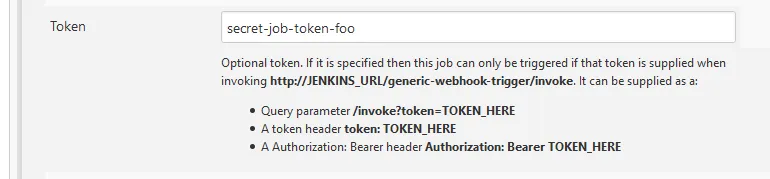 Configure the Generic Webhook Trigger using a token
In step 5, append the request parameter ?token=secret-job-token-foo to the URL. The job token is different to the
Jenkins authentication token.
Set URL to https://JENKINS_HOST_PORT/generic-webhook-trigger/invoke?token=JOB_TOKEN where
JENKINS_HOST_PORT is the public Jenkins host and port,
JOB_TOKEN is the Jenkins job token.
Troubleshooting
Section titled “Troubleshooting”Check the bitbucket webhook logs or history
Section titled “Check the bitbucket webhook logs or history”In Bitbucket Cloud, edit the webhook and check Request History Enable request history collection. This enables logging
of the request sent to Jenkins, and the response received from Jenkins.
If you see a message like:
{ "jobs": null, "message": "Did not find any jobs with GenericTrigger configured! If you are using a token, you need to pass it like ...trigger/invoke?token=TOKENHERE. If you are not using a token, you need to authenticate like http://user:passsword@jenkins/generic-webhook... "}you have to configure a Jenkins user and auth token in the URL.
Check received parameters
Section titled “Check received parameters”In Jenkins job configuration, check
- Print post content:
Print post content in job log. - Print contributed variables:
Print contributed variables in job log.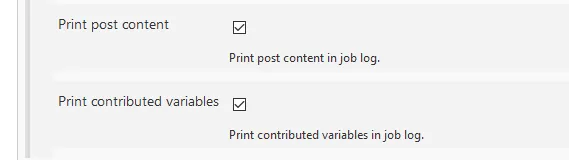 Print post content
- Manage webhooks from the Bitbucket Support wiki.
- Jenkins plugin generic-webhook-trigger